SSH
Todo:
- Arch Wiki: Google_Authenticator
Двухфакторная аутентификация SSH (2FA) recommends
nullokoption
https://highon.coffee/blog/ssh-lateral-movement-cheat-sheet/
https://johannes.truschnigg.info/writing/2022-07_advanced_ssh_usage/
Run commands on every login: ~/.ssh/rc.
Snippets
- SSH quoting
- Article
- In
ssh server bash -lc "pwd;cd /tmp;pwd"the remote command becomessh -c 'bash -lc pwd; cd /tmp; pwd' The right way is
ssh server 'bash -lc "cd /tmp;pwd"'
- HN
ssh server bash <scriptssh server "echo $(cat script|base64 -w0) | base64 -d | bash"is same, but doesn’t use stdinecho command | tee | ssh bash -seux
Run a script with
ssh server "$(< script.sh)"
Tunneling
https://ittavern.com/visual-guide-to-ssh-tunneling-and-port-forwarding/
https://posts.specterops.io/offensive-security-guide-to-ssh-tunnels-and-proxies-b525cbd4d4c6
https://medium.com/maverislabs/proxyjump-the-ssh-option-you-probably-never-heard-of-2d7e41d43464
Local Port Forwarding
Accessing a remote service (redis, memcached, etc.) listening on internal IPs
Locally accessing resources available on a private network
Transparently proxying a request to a remote service
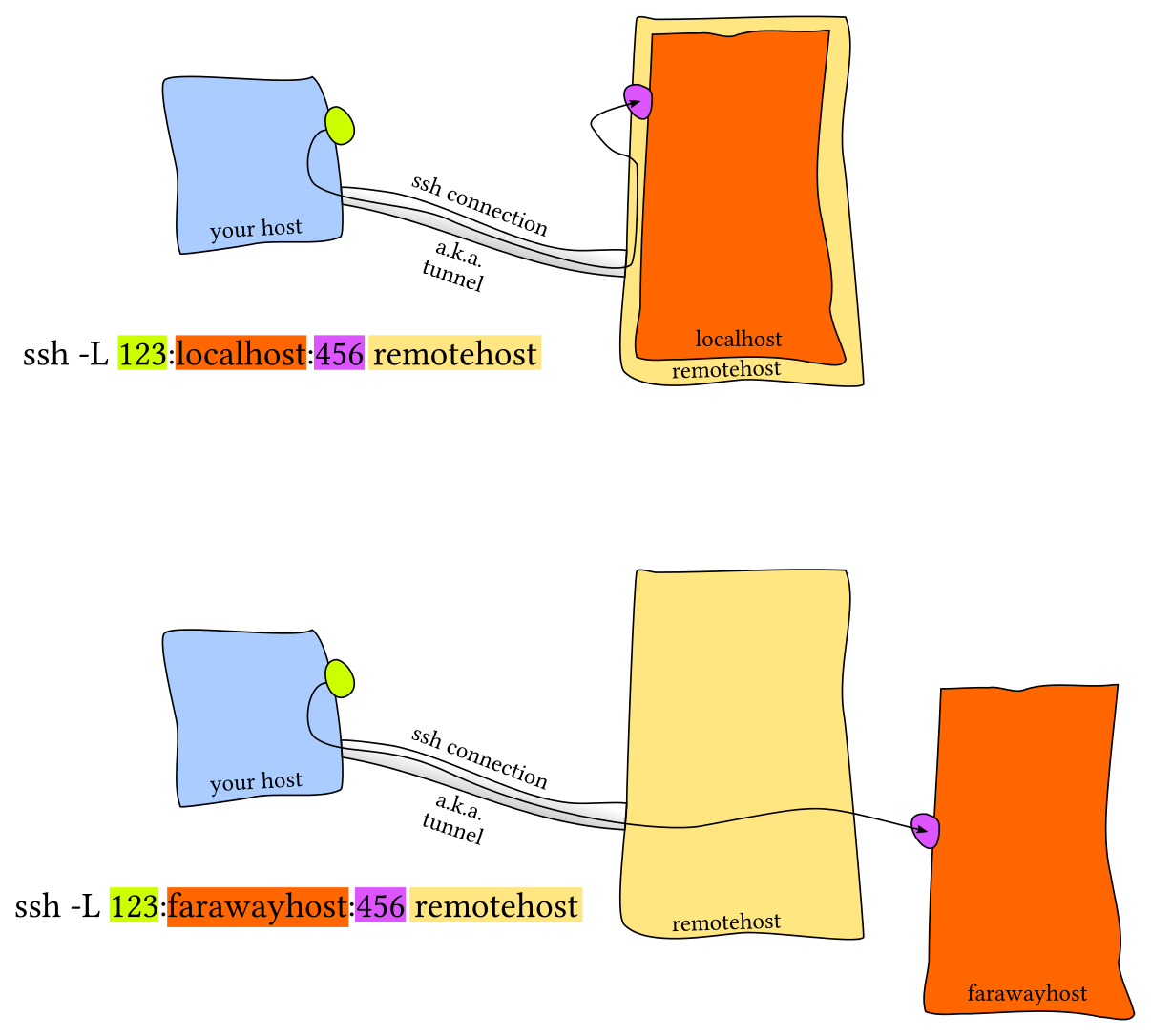
Examples:
# Forwards connections to 127.0.0.1:8080 on your local system
# to port 80 on example.org through ssh-server.
# 127.0.0.1:8080 --> ssh-server --> example.org:80
ssh -L   127.0.0.1:8080:example.org:80 ssh-server

# Forwards connections to port 8080 on all interfaces on your local system
# to example.org:80 through a tunnel to ssh-server.
# *:8080 --> ssh-server --> example.org:80
ssh -L             8080:example.org:80 ssh-server
ssh -L           *:8080:example.org:80 ssh-server

# Forwards connections to 192.168.0.1:5432 on your local system
# to 127.0.0.1:5432 on ssh-server.
# 192.168.0.1:5432 --> ssh-server --> 127.0.0.1:5432
ssh -L 192.168.0.1:5432:127.0.0.1:5432 ssh-server
Remote Port Forwarding
Making a local development server available over a public network
Granting IP-restricted access to a remote resource on a private network
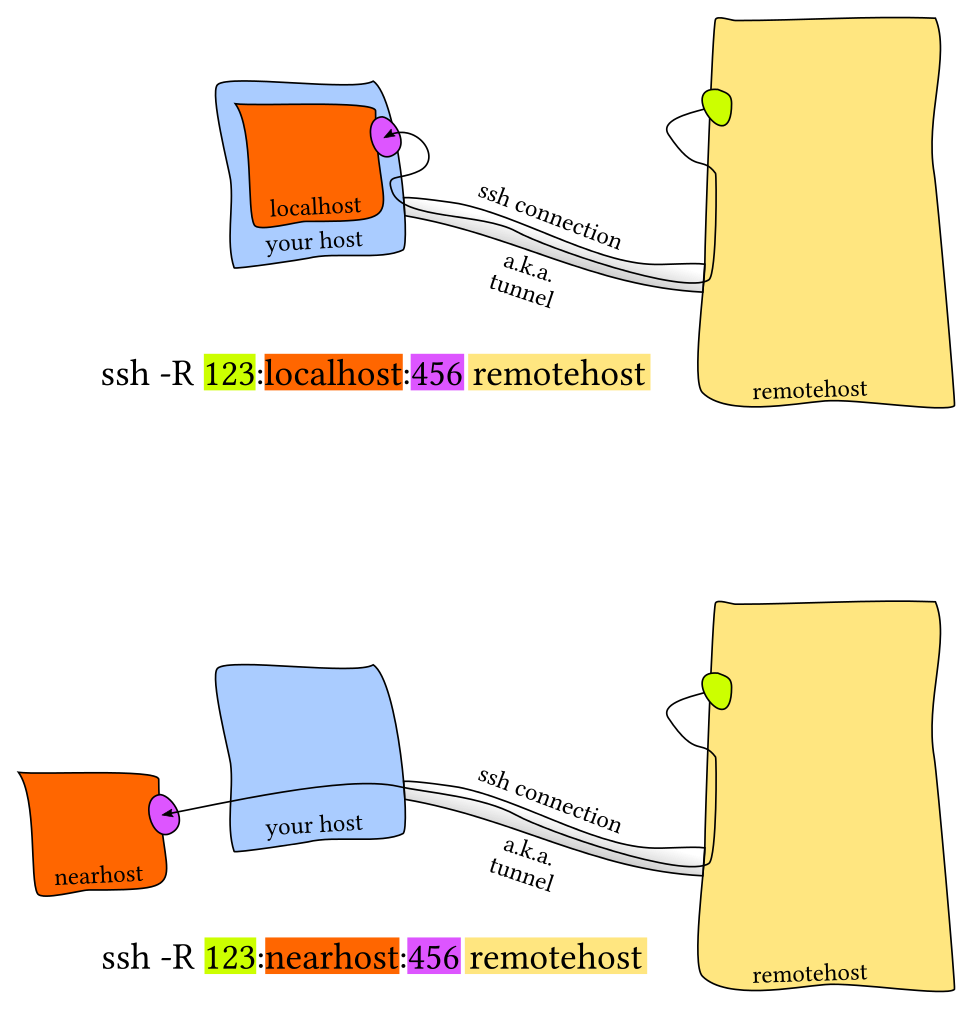
Examples:
# Forwards traffic to all interfaces on port 8080 on ssh-server
# to localhost port 80 on your local computer.
# anyone --> ssh-server:8080 --> localhost:80
ssh -R         8080:localhost:80 ssh-server

# Forwards traffic to ssh-server:8080
# to localhost:80 on your local system
# while only allowing access from IP address 1.2.3.4.
# 1.2.3.4 --> ssh-server:8080 --> localhost:80
ssh -R 1.2.3.4:8080:localhost:80 ssh-server

# Forwards traffic to all interfaces on ssh-server:8080
# to localhost:80 on your local system.
# From your local system, traffic is then forwarded to example.org:80.
# anyone --> ssh-server:8080 --> example.org:80
ssh -R         8080:example.org:80 ssh-server
Dynamic Port Forwarding
Dynamic port forwarding opens a SOCKS proxy on the SSH client that lets you forward TCP traffic through the SSH server to a remote host.
Examples:
# Opens a SOCKS proxy on port 3000 of all interfaces on your local system.
#         *:3000 --> ssh-server --> *:*
ssh -D 3000 ssh-server

# Opens a SOCKS proxy on 127.0.0.1:3000 on your local system.
# 127.0.0.1:3000 --> ssh-server --> *:*
ssh -D 127.0.0.1:3000 ssh-server

# curl -x socks5://127.0.0.1:12345 https://curlmyip.net
Jump hosts and proxy commands
Transparently connecting to a remote host through intermediate hosts.
Examples:
# Establishes an SSH connection with jump-host
# and forwards TCP traffic to remote-host.
# you --> user1@jump-host --> user2@remote-host
ssh -J user1@jump-host user2@remote-host
ssh -o "ProxyJump user1@jump-host" user2@remote-host

# you --> jump-host1 --> jump-host2 --> ssh-server
ssh -J jump-host1,jump-host2 ssh-server

ssh -o ProxyCommand="nc -X 5 -x localhost:3000 %h %p" user@remote-host
Signing with SSH Keys
Sign:
ssh-keygen -Y sign -n file -f ~/.ssh/id_ed25519     <FILE-TO-SIGN>
# or (private part being taken from ssh-agent)
ssh-keygen -Y sign -n file -f ~/.ssh/id_ed25519.pub <FILE-TO-SIGN>
Create allowed signers file:
GH_NAME=lainiwa
curl -s https://github.com/${GH_NAME}.keys |
    sed "s/^/${GH_NAME} /" |
    tee -a allowed_signers.github
Verify:
ssh-keygen -Y verify \
           -n file \
           -f allowed_signers.github \
           -I ${GH_NAME} \
           -s git_tutorial.zip.sig <git_tutorial.zip
Private Keys
Private Keys Surveillance
If someone knows your public key,
he can check if it is among the ~/.ssh/authorized_keys file.
List public ssh keys on github: curl https://github.com/lainiwa.keys.
Same for gitlab (even private).
Example of how a service can know your github name by your ssh key:
ssh whoami.filippo.io
Generate Keys and Install
Use either Ed25519 (EdDSA) or RSA-4096 for legacy and AWS. Avoid ECDSA/DSA though.
# Generate key
ssh-keygen [-t ed25519 | -b 4096 -t rsa] \
           -f ~/.ssh/id_ed25519_aws_$(date +%Y-%m-%d) \
           -C "Login to production cluster at xyz corp"
# Install key
ssh-copy-id [-i ~/.ssh/your-key] user@host
# or
# cat ~/.ssh/id_ed25519.pub | ssh user@host 'cat >> .ssh/authorized_keys && echo "Key copied"'
# Test
ssh -i ~/.ssh/your-key user@host
Multi Factor Authenticator
Trying to get SSH with public key (no password) + google authenticator working
TOTP + password OR public key seems to be impossible to achieve
Install google-authenticator on server:
sudo apt install libpam-google-authenticator
Edit:
auth sufficient pam_google_authenticator.so
...
ChallengeResponseAuthentication yes
UsePAM yes
AuthenticationMethods publickey,keyboard-interactive
PasswordAuthentication no
Restart:
sudo systemctl restart sshd.service
Configuration
Editing:
sudoedit /etc/ssh/sshd_configTest with
sudo sshd -tor extended testsudo sshd -Tsudo systemctl restart sshd
To disable root login:
PermitRootLogin no
To disable login by password:
PubkeyAuthentication yes
ChallengeResponseAuthentication no
PasswordAuthentication no
SFTP security
Wrong
Creating a user and attributing to placeholder shell
(/usr/bin/nologin or /usr/bin/false).
It can be bypassed by specifying execute command:
ssh name@ip /usr/bin/id
Right
Match User lain
    ChrootDirectory %h
    ForceCommand internal-sftp
    AllowTcpForwarding no
    PermitTunnel no
    X11Forwarding no
    PermitTTY no
Authentification Methods
Examples:
ssh 192.168.0.123 -o PreferredAuthentications=password
ssh 192.168.0.123 -o PubkeyAuthentication=no
Attack
Misconfigurations:
#PermitRootLogin yesFix with
PermitRootLogin no
- SFTP
/usr/bin/false//usr/bin/nologinplaceholder: can be bypassed byssh user@host /bin/bash Restrict in SFTP block: link
- SFTP
- Password login enabled
Can be bruteforced by: metasploit, hydra, medusa, ncrack
Linters
Examples:
docker run -it mozilla/ssh_scan -t 127.0.0.1 |jq
SSH escape sequences
user@host:~$ ~?
Supported escape sequences:
 ~.   - terminate session
 ~B   - send a BREAK to the remote system
 ~R   - request rekey
 ~#   - list forwarded connections
 ~?   - this message
 ~~   - send the escape character by typing it twice
(Note that escapes are only recognized immediately after newline.)